

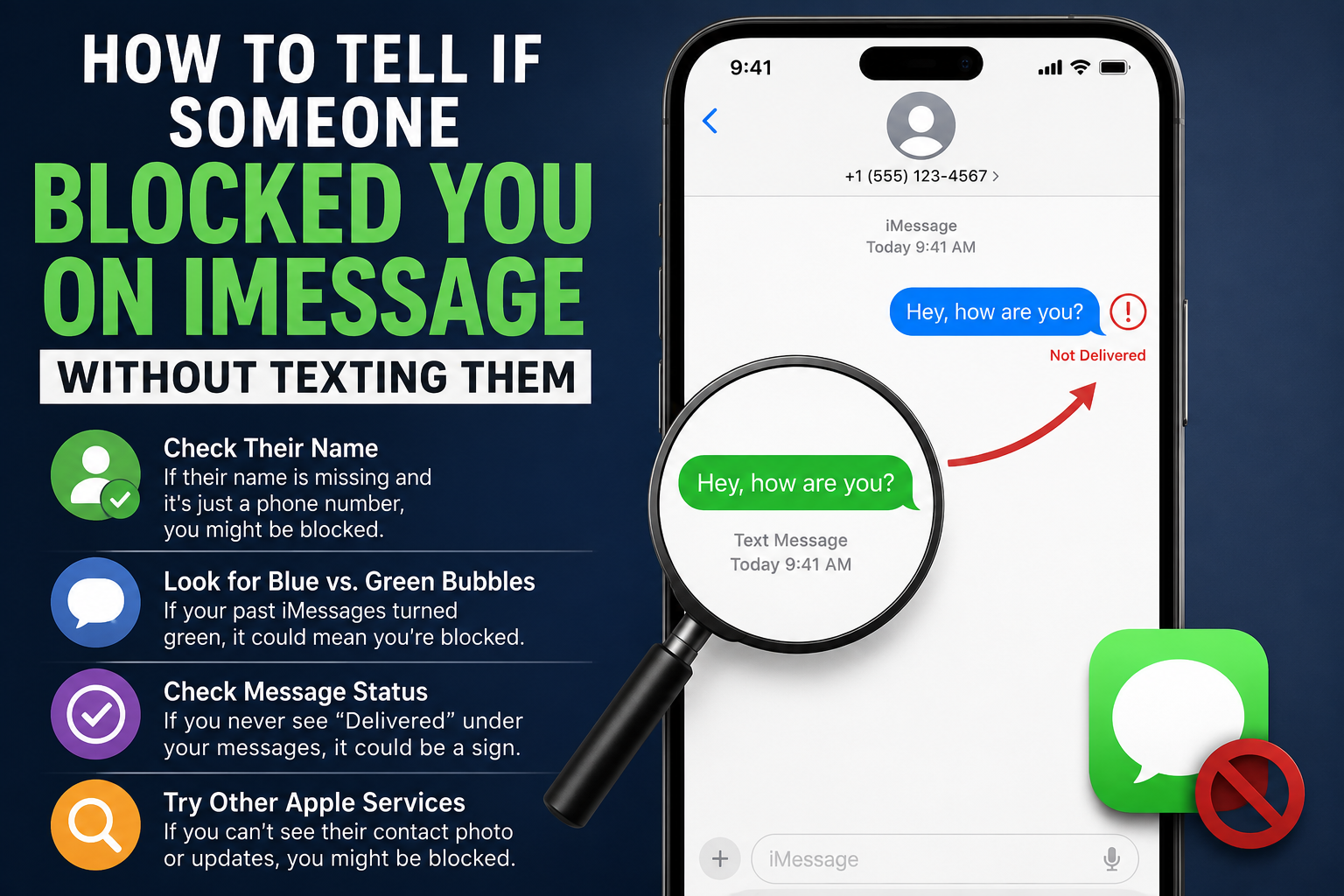
When a text conversation suddenly falls silent, it can trigger an endless cycle of overthinking. You check your phone every few minutes, hoping for a reply, but nothing happens. The digital void leaves you guessing. You want answers, but you do not want to look desperate or cause unnecessary friction by sending another text message. If you find yourself caught in this awkward situation, learning how to tell if someone blocked you on imessage without texting them can give you the clarity you need while protecting your peace of mind.
Apple prioritizes user privacy above almost everything else. When an iPhone user decides to block a contact, Apple makes sure the blocked person never receives an official alert. There is no automated notification, no red banner, and no warning pop-up. The system is designed to keep the blocker’s actions completely hidden. However, while the software leaves no explicit warnings, it does leave small footprints across the Apple ecosystem.
You do not need to send an uncomfortable “Are you ignoring me?” message to figure out what is going on. By observing how phone calls behave, testing FaceTime habits, checking shared location settings, and looking closely at past chat history, you can paint a very clear picture. Let us break down the exact steps and hidden signs you can use to uncover the truth without ever hitting the send button again.
The Mechanics of Apple’s Block Feature
To understand the subtle signs of a block, you first need to know exactly what happens under the hood when someone taps “Block this Caller” on an iPhone. Apple does not just block text messages. The block feature is a universal switch. It cuts off direct access across three main pillars of communication: traditional phone calls, iMessage, and FaceTime.
When a person blocks you, your phone continues to act completely normally on your end. Your interface will not change, your contact card looks the same, and the system will never show an error code. This intentional design choice prevents users from instantly knowing they were cut off, which helps reduce immediate retaliation or confrontation.
But because the recipient’s phone actively rejects your incoming data tokens, the cellular network handles your connection attempts in highly specific ways. If you understand these automated network behaviors, you can run a few simple checks. You will easily be able to distinguish between a dead phone battery, a device set to Do Not Disturb, or a deliberate block.
Method 1: The Ring Count and Voicemail Test
The single fastest and most reliable way to check your status without typing a single word is to place a traditional voice call. This does not involve sending a text message, yet it gives you instant, real-time feedback directly from the cellular carrier network.
When you call someone who has not restricted your number, the phone typically rings anywhere from four to fifteen seconds—usually about four to six full rings—before routing you to their voicemail system. If the person is currently busy and actively taps the “Decline” button on their screen, the phone will ring two or three times before cutting over to voicemail.
However, if you are blocked, the call behavior changes completely. The carrier network intercepts your call immediately because the recipient’s device rejects it at the gateway. In almost every case, your call will ring exactly once—or sometimes just a brief half-ring—and then cut straight to voicemail.
Testing for Consistency over Time
A single call that goes straight to voicemail does not definitively prove you are blocked. The other person’s phone could simply be powered off, out of cell coverage range, or completely dead. If an iPhone is dead, the call usually goes straight to voicemail instantly with zero rings at all.
To verify a block, you must look for a consistent pattern over time. Try calling at three or four different points during the day. You might try once in the early morning, once in the afternoon, and once late at night. If the call behaves exactly the same way every single time—one quick ring followed by an immediate jump to voicemail—the probability of an individual block is exceptionally high.
The Caller ID Masking Trick
If you want to be completely sure whether your number is blocked or if their phone is just powered down, you can test it by masking your caller ID. By hiding your phone number, you force the carrier network to present your call as an anonymous contact. If their phone is simply turned off or dead, an anonymous call will also go straight to voicemail. But if they have blocked your specific number, the anonymous call will bypass the block list and ring completely normally.
To hide your caller ID on an iPhone, follow these steps:
- Open your Settings app.
- Scroll down the menu and tap Phone.
- Look for the Show My Caller ID option and tap it.
- Toggle the switch to Off.
If you prefer, you can also dial a vertical service code directly before typing their phone number. In the United States and Canada, type *67 followed by the person’s full number. If you are in the United Kingdom, use 141. If the call suddenly rings four or five times normally when your ID is hidden, your specific phone number has been placed on their block list.
Method 2: Auditing Past iMessage Threads
Even if you choose not to send a new message, your existing chat log holds incredibly valuable clues. You can easily learn how to tell if someone blocked you on imessage without texting them just by looking closely at the history you already share.
Open your built-in Messages app and navigate to your private chat with the person in question. Look closely at the very last message you successfully sent days or weeks ago. Underneath that specific blue bubble, you should see a small status indicator.
If the person has read receipts turned on, it will say “Read” followed by a specific time or date. If they have read receipts turned off globally, it will simply say “Delivered.”
+——————————————————-+
| |
| Hey! Are we still on for dinner tonight? |
| |
+——————————————————-+
Delivered (or Read 6:15 PM)
The Disappearing Status Indicator
When someone blocks your number, any message that arrives on Apple’s servers after the block occurs will display absolutely no status text beneath it. If you were to send a text, it would remain completely blank underneath.
But since you are not sending a text, take a close look at your older conversations. On older iOS versions, historical “Delivered” badges would sometimes vanish entirely if a contact blocked you later on, leaving past texts statusless. On modern iOS versions, the older statuses usually stay intact, but comparing the steady presence of badges on older texts with the sudden total absence of delivery text on anything recent provides a strong hint.
The Blue vs. Green Bubble Myth
There is a massive misconception among iPhone users that if your chat bubbles suddenly turn from blue to green, it automatically means you are blocked. This is not entirely true, and relying on it blindly can lead to completely false conclusions.
Blue bubbles signify iMessages sent over Apple’s proprietary data network to another Apple account. Green bubbles represent traditional SMS or MMS messages sent through your carrier’s standard cellular network.
If your messages change from blue to green, it simply means your iPhone failed to establish a secure iMessage connection with their Apple ID. This shift can happen if:
- The recipient switched from an iPhone to an Android device.
- The recipient completely deactivated iMessage in their device settings.
- The recipient is currently in an area with zero cellular data or Wi-Fi coverage.
- The iMessage server network is experiencing a temporary global outage.
While being blocked can sometimes cause an iMessage to drop back to a standard SMS (turning green and showing a “Sent as Text Message” note), it usually only happens if you actively attempt to send a new text. If you are browsing your existing thread without sending anything new, the bubble colors will remain exactly as they were when you originally sent them.
Method 3: The FaceTime Connection Test
FaceTime operates on the exact same Apple ID authentication framework as iMessage. Because of this shared ecosystem, blocking a user in one communication app automatically blocks them across all other native Apple communication tools. You can leverage a quick FaceTime call to gather diagnostic information without ever typing out a risky text message.
To try this test, open your native FaceTime app and select the contact. Start a standard video or audio call.
If you are communicating with someone who has a working, unblocking iPhone, FaceTime will behave predictably. The screen will say “Calling…” and you will hear a faint, repeating ringing tone through your speaker. It will continue to ring for roughly thirty seconds until the system times out or prompts you to leave a video message.
If you are blocked, the FaceTime server detects the account restriction instantly. The call will often fail almost immediately. The interface may display “Connecting…” for a fraction of a second before abruptly dropping the call entirely and displaying a “FaceTime Unavailable” or “Call Failed” message.
Crucially, because you are blocked, their physical device will never ring, their vibration motors will not trigger, and they will never receive a “Missed FaceTime Call” notification on their lock screen. It is a completely silent failure on their end, but a highly visible pattern on yours.
Method 4: The Focus Mode and “Notifications Silenced” Status
Apple introduced shared Focus Status features to help users manage their digital wellness and screen time. When someone places their phone on “Do Not Disturb,” “Sleep,” or a custom “Work” Focus mode, Apple allows approved contacts to see that their notifications are temporarily muted.
This creates an exceptional diagnostic tool for anyone trying to figure out how to tell if someone blocked you on imessage without texting them.
Open your existing text thread with the person. Scroll all the way down to the very bottom of the screen, right where your text entry field sits. If that person has silenced their alerts using a standard Focus mode and has enabled the “Share Focus Status” setting in their privacy options, you will see a small, clear prompt at the bottom of the screen. It typically displays a small crescent moon or custom icon alongside text like “[Contact Name] has notifications silenced.”
If you can see this “Notifications Silenced” banner, you are absolutely not blocked. The presence of this banner proves that your Apple ID is still actively communicating with their device’s operating system to retrieve their real-time availability status. They are simply busy, driving, sleeping, or taking a much-needed break from their screen.
If you previously saw this banner frequently when they were busy, but it has completely vanished and never returns—even during times you know they are fast asleep or at work—it implies that the data pathway between your Apple IDs has been severed.
Comparing Communication States
To help make sense of all these overlapping technical signs, it is helpful to see exactly how different phone states alter your iPhone’s behavior. The table below details what happens during a block versus other common scenarios like a dead battery or Do Not Disturb mode.
| Indicator | When You Are Blocked | Phone Is Dead / Off | Do Not Disturb Active |
| Standard Voice Call | Rings once (or half a ring), then goes straight to voicemail. | Goes straight to voicemail instantly with zero rings. | Rings normally several times, or rings once if “Repeated Calls” bypass is configured. |
| Masked Call (*67) | Rings completely normally 4-6 times until voicemail answers. | Goes straight to voicemail instantly with zero rings. | Behaves exactly like a standard unmasked call. |
| FaceTime Call | Abruptly disconnects within seconds; shows “Unavailable.” | Rings endlessly or says “Connecting” until timing out. | Rings normally on your end but makes no sound on theirs. |
| Focus Status Banner | Completely invisible; no status updates are shared. | Invisible (status cannot update from a powered-off device). | Visible at the bottom of the chat log (if sharing is turned on). |
| Older Delivery Badges | May show historical statuses, but no new updates flow through. | Retains all historical “Delivered” or “Read” labels perfectly. | Shows “Delivered” instantly beneath any previously sent text. |
Method 5: Checking the “Find My” Ecosystem
If you and this contact previously chose to share your real-time locations with each other through Apple’s native “Find My” app or directly inside the Messages app, you have access to another major clue. Location sharing is tied directly to iCloud accounts, meaning a system-wide contact block tears down these location pipelines immediately.
Open the Find My app on your iPhone and tap on the People tab at the bottom left of your screen. Locate the contact’s name in your list of friends.
- Normal Behavior: If things are fine, you will see their live location on the map, or a map pin indicating their last known location with a timestamp (such as “Live” or “20 minutes ago”).
- The Blocked Behavior: If that person has blocked your number, your access to their location permissions is instantly revoked. Their name may completely disappear from your “People” list altogether. Alternatively, if their name remains in the directory, the status text beneath their name will change to a permanent, static message reading “No Location Found” or “Location Not Available.”
The Rule of Exclusion
You must be careful here. A status of “No Location Found” can also occur if the person manually turned off their location services, put their phone in Airplane Mode, lost cellular reception entirely, or if their battery died.
However, if you check the app over several days and their location never updates, while their voice calls continue to drop to voicemail after precisely one ring, you are no longer dealing with a temporary network glitch. The puzzle pieces are fitting together to point to an intentional block.
Method 6: Group Chat Dynamics
Another great way to gather information without reaching out directly is to look at your mutual group chats. If you and the person who you think blocked you are both members of the same active iMessage group conversation, the block works in a very specific, quirky way.
Apple’s software does not kick a blocked user out of a pre-existing group chat. It also does not remove you from their view within that group. This means that inside a shared group text thread, the lines of communication remain technically open.
- What You See: You will still see every single message that the other person sends to the group chat. Their text bubbles will appear normally, and they can interact with everyone else.
- What They See: Interestingly, the person who blocked you will also continue to see your messages inside that specific group chat. Apple allows group communication to override individual block settings to prevent group chats from completely breaking down.
To use this to your advantage without texting them directly, simply monitor the group chat passively. If you notice that the person is actively replying to other mutual friends in the group chat, sending emojis, and typing regular responses, you instantly know that their iPhone is turned on, fully functional, and connected to a strong internet network.
If their individual voice calls to your number still drop to voicemail on the first ring, but they are laughing and texting inside the group chat at that exact same moment, you have definitive proof. Their phone is not dead, and they are not stuck in an area with bad cell service. They have specifically blocked your individual contact card.
Common False Alarms to Keep in Mind
It is incredibly easy to jump to conclusions and assume the worst when someone goes silent. Before you accept that a relationship or friendship has been restricted, you must rule out several everyday technology issues that mimic the exact behavior of an Apple block. Understanding these differences is a vital part of learning how to tell if someone blocked you on imessage without texting them.
1. The Device is Powered Off or Dead
When an iPhone battery dies completely or a user manually powers down their device, the phone disconnects from the cellular network entirely. Any incoming call will ring zero times and go straight to voicemail. Any iMessage you previously sent will remain frozen without a “Delivered” badge because there is no active hardware on their end to receive the data package. This looks identical to a block, but it usually resolves itself within a few hours once the person finds a charger.
2. Airplane Mode
When someone boards a flight or intentionally turns on Airplane Mode to save battery, all cellular, Wi-Fi, and Bluetooth radios are cut off instantly. Just like a dead phone, their device will not accept incoming calls or process data. Calls drop to voicemail immediately, and delivery statuses stop updating.
3. The “Silence Unknown Callers” Feature
Apple includes a helpful privacy feature called “Silence Unknown Callers.” If the person you are trying to reach recently deleted your phone number from their address book, or if you are calling them from a new number that is not saved in their contacts, this feature will automatically intercept your call.
When this setting is active, any call from an unsaved number is sent instantly to voicemail without ringing the actual phone, even though you are not explicitly blocked. Their phone will still accept your iMessages normally if they have your email or Apple ID saved, but voice calls will behave exactly like a block.
What to Do If You Confirm a Block
Discovering that someone has blocked your number can be a tough pill to swallow. It often brings up feelings of confusion, frustration, or sadness. However, once you have analyzed the patterns—the one-ring voicemails, the dropped FaceTime calls, and the missing location data—and concluded that you are blocked, your next steps are highly important.
The most crucial thing to do is to respect their digital boundary. Blocking is a deliberate action that requires navigating through several menus on an iPhone. It is a clear statement that the other person needs space or a complete break from communication.
Resist the temptation to bypass the block by using alternative apps, creating burner profiles, or contacting them through mutual friends. Attempting to force communication after someone has explicitly blocked you will almost always worsen the situation and push the person further away. Instead, take a step back, focus on your own routine, and allow time and space to naturally clear the air.
Summary Checklist
Investigating your contact status without reaching out does not require elite tech skills. By keeping your eyes open and paying attention to system details, you can protect your dignity and find clarity.
Let us recap the ideal non-text checklist you can perform right now:
- Analyze old message statuses: Look for the sudden disappearance of “Delivered” badges or inconsistencies compared to historical conversations.
- Monitor the bottom of the chat window: Check if a shared Focus Status moon icon appears. If it is there, you are definitely safe.
- Count the rings on a standard call: Listen for the telltale single ring before an abrupt cut to voicemail. Repeat across different days.
- Try the masked number test: Toggle off your Caller ID or use a prefix like *67 to see if the call suddenly rings normally.
- Initiate a brief FaceTime call: Watch to see if the call system errors out or drops to “Unavailable” within a single second.
- Check your Find My app map: Look for the sudden and permanent switch to a “No Location Found” alert for a previously shared contact.
- Observe shared group chat threads: Watch to see if they are actively communicating with other people while completely ignoring your individual reachouts.
Conclusion
Navigating the quiet shifts in digital communication can be stressful, but you do not have to remain entirely in the dark. Figuring out how to tell if someone blocked you on imessage without texting them is all about looking at patterns rather than single events. A dead phone battery, an overseas flight, or a busy day at the office can easily look like a block for a few hours.
But when a single ring on a phone call, a dropped FaceTime screen, and a missing location status all happen at the same time for several consecutive days, the technology is giving you a clear answer.
Apple designs its software to protect user choices and prevent unnecessary conflict. By using these silent diagnostics, you can read the digital signs clearly without having to type out an awkward text or deal with an uncomfortable confrontation. Ultimately, the best tool at your disposal is patience. Give the situation a few days to settle, let the technology process, and remember that sometimes, giving someone space is the healthiest choice you can make for both them and yourself. Use these insights to get the clarity you need, protect your peace of mind, and move forward with confidence.
